
Using the GoTo Mobile App
Purpose
This guide provides step-by-step instructions for Preston College staff on how to download, sign in to, and use the GoTo mobile app with their assigned College phone number.
Instructions
Obtaining the app
Download the GoTo app from the App Store or Google Play Store:
iPhone/iPad: Search for ‘GoTo’ by GoTo Technologies USA, Inc.
Android: Search for ‘GoTo’ and tap Install.

Signing into the GoTo app
Open the GoTo app and select Sign in to GoTo.
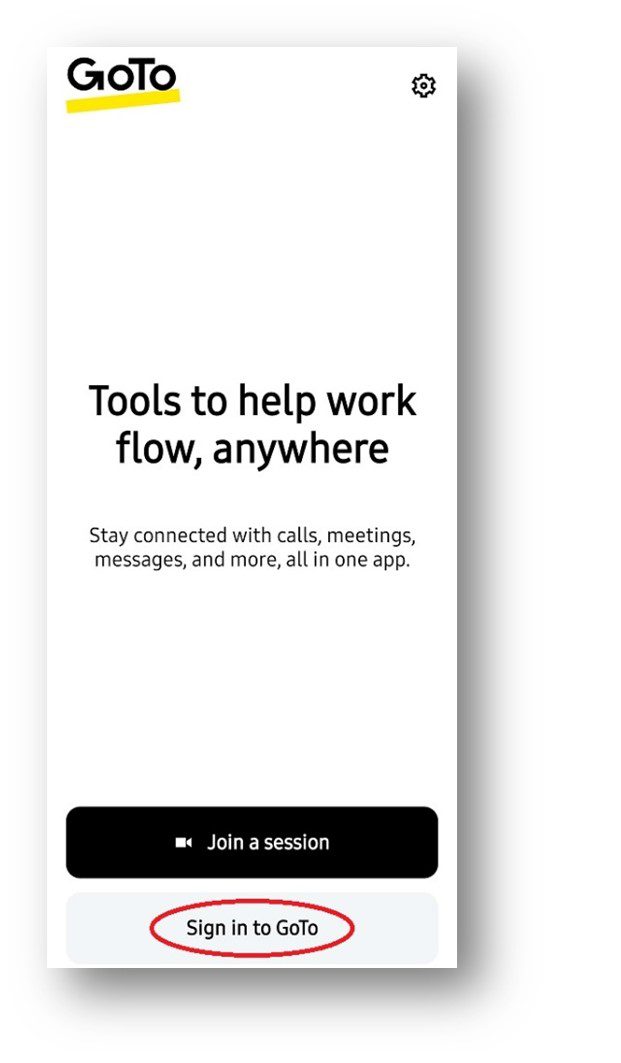
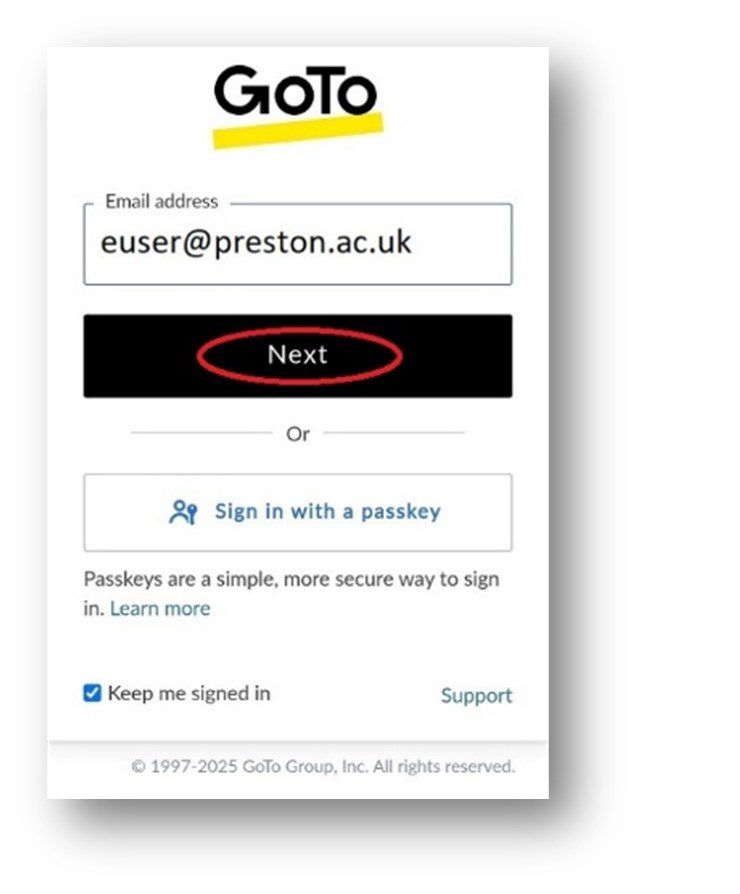
2. In the Email Address box, type your college email address (e.g. euser@preston.ac.uk) and tap Next.
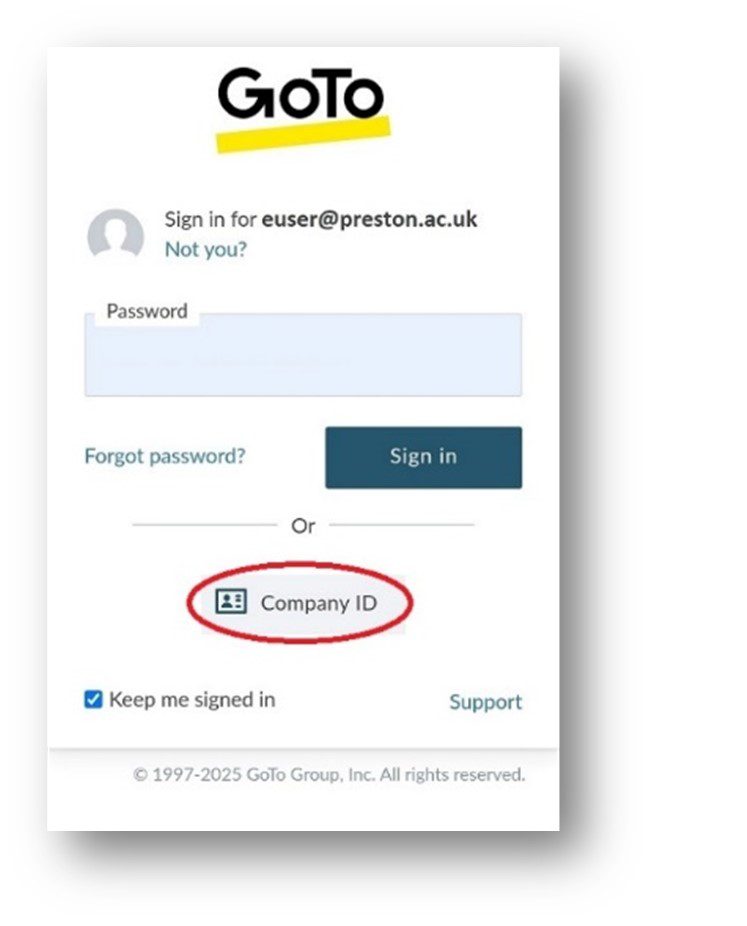
3. On the password screen, tap Company ID (do not enter a password). The app will automatically redirect you to the Preston College Microsoft login page.
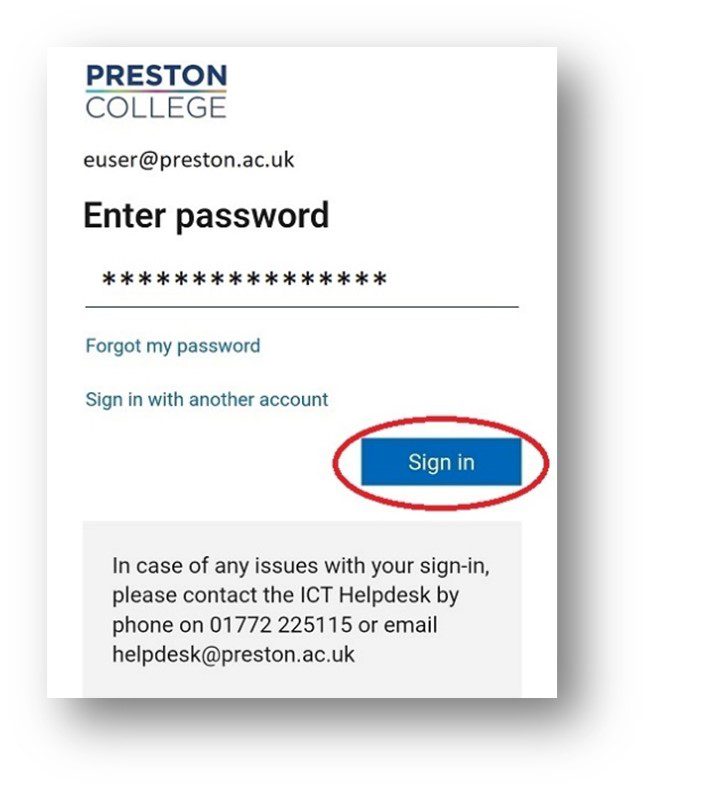
4. Sign in with your college network credentials and complete MFA if prompted. You’ll then be returned automatically to the GoTo app.
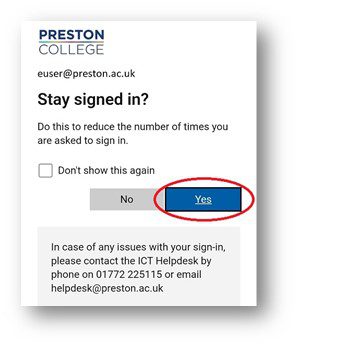
5. When asked, allow permissions for Microphone, Camera, and Notifications. You can choose to allow your own contacts to be available in the app.
Making a call
From the Phone section of the app, select the icon (shown below). This will bring up the keypad.

You can then dial a phone number and select the icon (shown below) to initiate a call.

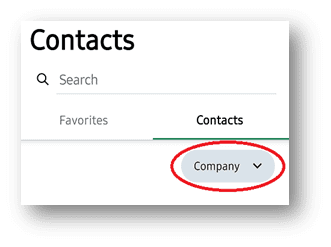
To call an existing college contact, go to the Contacts section of the app and select a number from the list. By default, your app may show all contacts on your device. Ensure Company is selected in the dropdown at the top of the contacts list.
Creating a schedule
Once you have successfully logged into the GoTo app it will stay signed in until you choose to sign out again.
To ensure you are only receiving calls during working hours, you can create a schedule. This will ensure that you will only receive incoming calls to your mobile device during specific hours.
- To do this, tap the icon (shown below) at the top of the screen to enter the settings menu.
- Scroll down and tap Schedule.

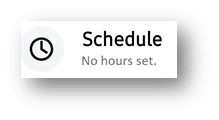
3. Then tap Work schedule. This will show a list of days.
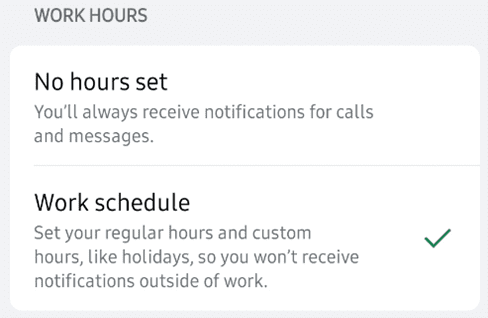
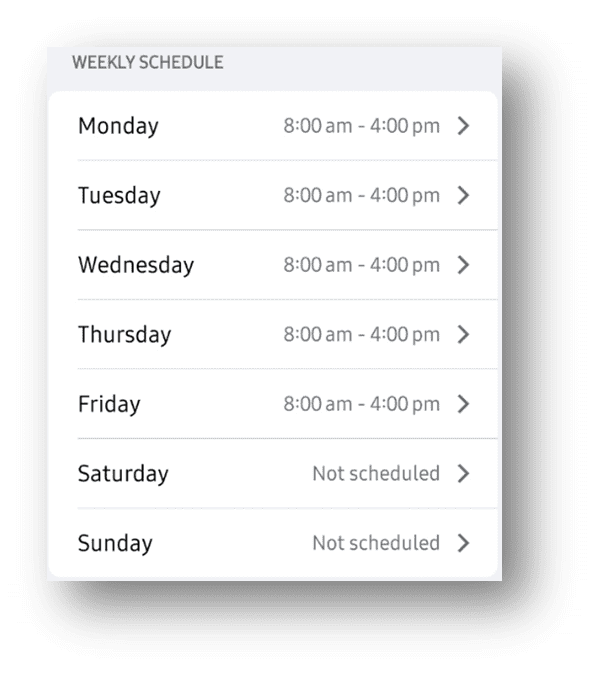
4. Set a weekly schedule with specific times by tapping each day and using the time picker.
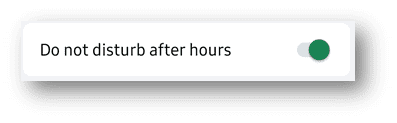
5. Finally, confirm that the Do not disturb after hours setting is active. This will ensure that notifications from the app are silenced outside of your specified schedule.
Managing multiple extensions
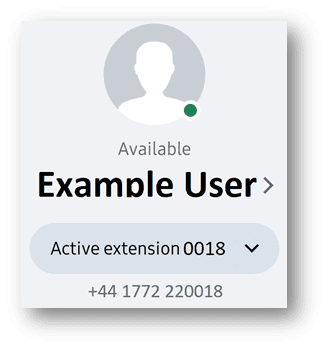
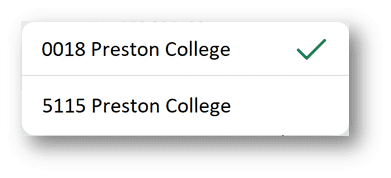
If you have multiple extensions associated with your account, you will have to select one to be your active number.
- To do this, tap the icon (shown below) at the top of the screen to enter the settings menu.
- Tap the Active extension dropdown and select the extension to receive calls from.
Troubleshooting
| Issue | Solution |
| Password screen appears | Always tap Company ID, not the password box. |
| Redirect not appearing | Check your internet connection and retry. |
| Stuck or looping login | Log out of personal Microsoft accounts in your mobile browser and retry. |
| Can’t make calls | Make sure microphone permissions are allowed and test using mobile data. |
| Not receiving incoming calls | Check that notifications are allowed, your work schedule is set correctly, and Do not disturb after hours is not active during your working hours. |
For further assistance, please contact the ICT Helpdesk on 01772 225115 or email helpdesk@preston.ac.uk.